With the MQTT base station now up and running, we can start sending data back to the server to be stored, and for that we need some temperature sensors.
To build the sensors we're going to need micro-controller with WiFi and some kind of temperature sensor. For the micro-controller I went with the cheap and plentiful ESP8266, built onto a WEMOS D1 mini, and is easy to programme via the Arduino IDE.
I picked the HTU21 on a breakout board as a temperature, and humidity, sensor, mainly because it's cheap, available and can be run via I2C, which means that should I want to integrate it into other things (like an e-paper clock?), it won't take up many pins.
The code to run the sensor is in this repository, in the folder /d1-mini-htu21-temp-hum-mqtt. It's very basic, simple, and around once a minute collects the temperature and humidity and sends it to the server. This is then stored in the lastUpdates table, and if the temperature is different to the one recorded ten minutes ago, also added to the archive.
Power
These sensors don't require a lot of power and I was considering making these sensors battery powered, but that adds quite a bit of complexity, and expense. We already have quite a few old mobile phone chargers lying around that I can use to power them, and I only want to install them indoors, near a power socket, for now.
I want to report the temperature every minute, the rest of the time the sensor is idle, and just waiting. I did find a good article that explained 3 different types of sleep that an ESP8266 can be put into as well as this set of article that describes 5 states.
I did experiment with using the Deep Sleep option, but that had a number of issues. The first is that when the micro-controller starts up again, it has to connect to the network, and then the MQTT broker - which causes the modem to use a lot of current. Second this causes the broker (my lowly old Raspberry Pi) to have to deal with all these requests. I'm probably being paranoid, but one concern I had is that it would eventually get overwhelmed by a relatively small number of sensors, if multiple times a minute one was connecting and disconnecting. Lastly, all the deeper sleep options cause the setup{} function to run each time, so if you want one minute intervals, you have to cut the time you're actually asleep for.
Some testing revealed that using the Deep Sleep option, and reporting a temperature reading every minute, used about half the power of the Auto Modem Sleep, that kicks in automatically after using delay() for more than 10 seconds. While actually asleep, the sensor did use significantly less power, see the above articles, but because of all the extra power needed by the modem when reconnecting, it only reduced the consumption by half.
I tested both for 10 minutes, using a cheap USB power tester, and got the following results, all while reading 4.8V.
| Sleep Type | Power Consumption mWh | mAh |
|---|---|---|
| Auto Modem Sleep | 19 | 4 |
| Deep Sleep | 8 | 1.67 |
Those are not very good numbers for a device you want to power via a battery. For comparison we have some Bluetooth thermometers around the house that last many months on CR2477 battery, that has a nominal capacity of 1,000 mAh. Even in deep sleep mode that would only last around 600 hours, or about 25 days, for these sensors, which is far too short to be practical. That's either a lot of batteries, or a lot of re-charging I would have to do.
In the end I didn't try and do anything clever, and relied on the fact that the 'Auto Modem Sleep' modem would help by itself.
Sensor Location
The D1 Mini luckily has a matching layout of pins as the HTU21 sensor's breakout board, and I thought this would be a good way of getting a nice neat and compact sensor. This way I could just solder the sensor straight onto the board, and then hide that wherever I want, so that's what I did.
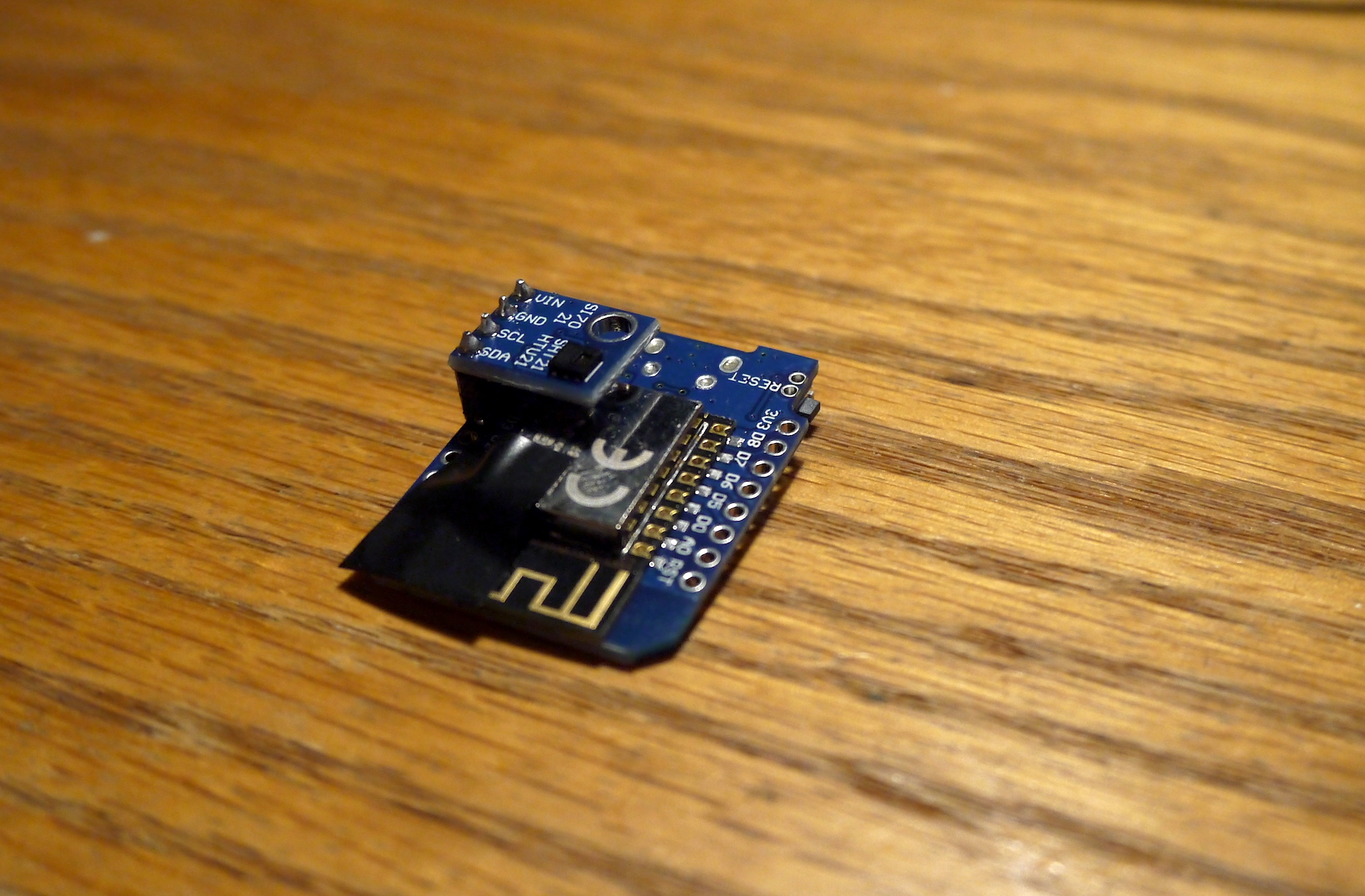
Unfortunately that didn't work. After having soldered and installed the first set of sensors, when comparing the results to some other thermometers we have, after a short while they would all start to read around 2-4°C higher than the actual temperature.
Initially I suspected self heating, but looking around suggested it was more likely an issue coming from the closeness of the sensor to the micro-controller. One solution was to make the micro-controller sleep for longer periods of time, but if I wanted to keep the approximately one minute intervals, then that didn't seem to help as much as I'd hoped. So sadly, the nice compact design was not to be, it looked like the only good answer was to separate the sensor and the board. Which apart from the aesthetics, and practicality, was a setback as now I would have to desolder all the existing boards I'd put together.
Given my lack of skill at soldering, this both took much longer than hoped, and wasn't easy on the boards. Luckily none were so damaged that they couldn't be used, but few cases I had to resort to using other pins, as my ability to use a soldering iron to reflow a series of soldered pins wasn't very good. I think this is normally where you would use a hot-air gun to melt multiple pins at once.

The result is not quite as neat1, but when installing the sensors around the house, in some cases it was easier to hide the power cable and main part of the board behind a shelf, and then tape the sensor somewhere innocuous, where it could get a better reading of the room temperature than being stuck behind a shelf. This does however make we wonder how practical it would be to include a temperature sensor in some other device, especially an enclosed one, where it would have to live close to the micro-controller.
If I had a good way of calibrating the sensor, I could compare the readings in such a case to a known value, and include some calibration in the reading before sending the signal, but I don't have a good way of creating a range of known temperatures to try that, and I'll have to leave it as a problem for another time.
Installation
With the boards now working as expected, it was time to install them. In the code I added my network's usernames and password, and those required for the broker, and then compiled and uploaded the program using the Ardunino IDE.
Then I could place the sensors where I wanted around the house, I started with 5 sensors, so one in each bedroom, plus one in the lounge/kitchen and one in the basement.
Each sensor includes it's client ID in each transmission, which includes its MAC address, hopefully making them unique. I then used the command line create_update_stations.py from the store-mqtt-data scripts used last time to add entries for each sensor that stores its current installation location in the table 'stations', which we'll use later when displaying the data.
Overview: Home Sensor Overview