A few weeks ago I set up a simple git server to run at home so I don't have to rely on Github or similar external services. That worked fine, but two things felt unfinished: The ability to create a new repository, and an easy way of listing the existing ones, without having to SSH into the host. Luckily with GitWeb, shell scripts and CGI magic we can fix that.
I thought I could live without these two features, but it turns out that the ability to:
- See the names of existing repositories
- Create a new repository
without having the SSH into the host, were things that I was really missing after only a week of using this server.
(As before, all of this is being done on FreeBSD 14.2-RELEASE, running in a jail on a Raspberry Pi 3B+.)
Adding Gitweb
Git comes with it's own little web interface called, unsurprisingly, GitWeb. This is installed along with the rest of the Git programme, and on FreeBSD lives in the directory /usr/local/share/examples/git/gitweb.
Previously we'd installed our git repositories in /srv/git, and we'll put gitweb alongside them
cp /usr/local/share/examples/git/gitweb /srv/.
This folder contains a gitweb.cgi file, and a folder of additional assets the site requires called static.
NGINX and FastCGI Wrap are set up from the first step, so there's nothing new to install. Ensure that the permissions in the Gitweb folder are set so the www user can read them all, and execute the gitweb.cgi file.
Then I needed to add the following three additional locations in the NGINX configuration file; in this order (the URL matching is done in sequence, so the order matters), above the first location listed in the previous post for the /usr/local/etc/nginx/nginx.conf file. (A complete nginx.conf file is at the end of this post.) Explanation of each below the snippet.
location = / {
  return 301 /gitweb.cgi;
}
This is relatively simple, it just redirects the root of the website to the gitweb.cgi file, e.g. if you go to example.com you'll be redirected to example.com/gitweb.cgi.
location ~ /static/.* {
  # Needed for static gitweb assessts
  root /srv/gitweb;
}
I couldn't find this mentioned anywhere else, or in other configs that I found, but I needed it, otherwise some of the assets for the gitweb site (like the logo top right, favicon and CSS) wouldn't load, as my browser couldn't access them. By default gitweb.cgi references them to be under the relative path of static/ so this makes those available. (You could update this in the /etc/gitweb.conf file if you want to keep them in another location.)
location ~* ^/gitweb.cgi.* {

  set $auth_set off;
  if ($args ~* ^p=([a-z]*)\/.*) {
    set $auth_set Restricted;
    set $project $1;
  }

  auth_basic $auth_set;
  auth_basic_user_file /srv/git/$project/.htpasswd;

  include fastcgi_params;
  fastcgi_param SCRIPT_FILENAME /srv/gitweb/gitweb.cgi;
  fastcgi_pass unix:/var/run/fcgiwrap/fcgiwrap.sock;
}
This is the most complicated one, but mostly because of the authorisation. Last time NGINX was set up so that it's possible to restrict access to any project, e.g. repositories under another directory, like alice/alices-repo.git, would require access to be granted in the alice/.htpasswd file. This allows users to have private repositories. This needs to be replicated for the gitweb.cgi file, otherwise others would be able to use gitweb to see the contents of those repositories, even if they then can't clone them directly.
When you click the link on the top project page of gitweb, you'll land on a page with a URI like http://git.example.com/gitweb.cgi?p=alice/alices-repo.git;a=tree. Everything before the ? is considered the URL, and anything after that are arguments, sent then to the receiving process. NGINX makes these available as the embedded variables as $args, which you can match with regex, as happens here, to extract any text after the p= and before the / and then re-use that in the regex extracted variable $1. The trickiest part of this was learning that you can't have the auth_basic* directives inside a NGINX if statement, for reasons I've not understood. But you can change the value of a variable, that is then used to control if auth_basic remains "off", or is changed to anything else, at which point NGINX will demand a password. (This took me much longer to figure out than I would have liked, but perhaps it's useful for someone else.)
The rest of this location directive is, like the previous git examples, using FastCGI Wrap to run the CGI file, and then pass the response to NGINX to server.
After that the only thing left to do is adjust some values in /etc/gitweb.conf to your liking. The only mandatory elements are setting the $projectroot so it can find the repositories, and updating the $site_name and $home_link values to match your site.
I removed the column of the 'owner', as that always displayed the www user for me. Additionally I updated the $logo and $favicon images in the static folder, 'borrowing' the two from git-scm.com because that's what I recognise as git related when I see favicons in my browser tabs, and I didn't really recognise the grey +/- logo that's the default.
our $projectroot="/srv/git";
our $home_link_str="git.example.com";
our $omit_owner=true;
our $site_name="git.example.com";
With that, restarted NGINX, and you should be able to visit your shiny new git website, while also using smart HTTP to clone, pull and push repositories.
Creating Remote Repositories
Having a visual way to explore the repositories in nice, and using the website we now have, it would be nice to have to ability to create new repositories from that site, since it's already there.
This means we need some interactivity, so of course there is only one solution: download the latest JavaScript framework, VulocityRect.js, only at version 0.0034 but already used for galaxy scale applications, and 1.21 Jiggabytes of NPM dependencies…only joking. We can achieve this using some basic early 90s technology, a shell script, and ten lines of HTML.
This was, like NGINX the last time (cough, and this time) an opportunity1 for me to learn something new, specifically Common Gateway Interface (CGI) scripting. More observant readers will have noticed we've already been using gitweb.cgi, which is a Perl programme that generates the HTML for the git webpage based on the repositories it finds.
It turns out that CGI (or more accurately in our case FastCGI) is beautifully simple. If you can write an application that returns the text of a webpage, and does other useful things like create a new git repository on a server, you can write a CGI application. And by 'application' I mean a shell script.
For brevity I'm going to skip some details around what I learnt about CGI (that I should probably be a separate post), but all that needs to happen is that NGINX captures some arguments from a URL, and passes them to our shell script, which then does our work, and echos back a HTML page telling us how it went. We already have FastCGI Wrap installed for the smart git HTTP server, and for gitweb, and this acts as the intermediary between NGINX and our script. Our script is called create-repo.cgi (It's a shell script, like gitweb.cgi is a Perl script, but by convention the scripts are called .cgi).
To support that, our NGINX config entry (placed after the three above, and before the location entries descried in part 1) is as follows:
location ~* /create-repo.cgi {

    auth_basic "Restricted";
    auth_basic_user_file /srv/.htpasswd;

    fastcgi_intercept_errors on;
    include fastcgi_params;
    fastcgi_param SCRIPT_FILENAME /srv/gitweb/create-repo.cgi;
    fastcgi_param REPO_NAME $arg_reponame;
    fastcgi_param DESCRIPTION $arg_desc;
    fastcgi_pass unix:/var/run/fcgiwrap/fcgiwrap.sock;
    }
The first part is simply the authentication, so only those with 'pusher' access can create new repositories, as in previous locations.
The SCRIPT_FILENAME has to point to where our script is, and then we can use NGINX's embedded variables again to extract the arguments for us. In the URL the arguments come after the ? and separated with a & symbol, e.g the URL git.example.com?repo_name=bad-poetry&desc=emo has the arguments 'reponame' set to "bad-poetry" and argument 'desc' set to "emo". NGINX makes these available prefixed with $arg_. These are then added as environmental variables by the fastcgi_param directive. So the line:
fastcgi_param REPO_NAME $arg_reponame;Takes the argument 'reponame' and makes it available to a shell script as variable 'REPO_NAME'. All we need now is that shell script.
WARNING! Like last time, this should not be deployed on the public internet. Safely at home behind a firewall is probably OK, but I can't guarantee that this isn't full of code injection attack possibilities. So use at your own risk, especially given the nature of shell scripts to present many subtle opportunities to shoot yourself in the foot by not escaping things correctly.
#!/bin/sh
# -*- coding: utf-8 -*-

# Create a new bare repository, designed to be called as a CGI script
# and return a HTML page explaining the response
# Expects variables REPO_NAME and optionally DESCRIPTION

usage() {
    echo "Usage:"
    echo "REPO_NAME=\"example\" DESCRIPTION=\"description\" $0 [-h]"
    echo "  Create a new bare git repository named REPO_NAME,"
    echo "  optionally with description DESCRIPTION suitable"
    echo "  for GitWeb to display."
    echo "  Returns HTML for a CGI script with success"
    echo "  or error messages."
    echo "  -h: Prints this message."
}

print_resp() {
    # print message $1 with optional title $2
    # if $2 is "Error" also print env.

    title="$2"
    # Needed otherwise server doesn't know
    # what content type to send, and errors.
    echo "Content-type: text/html"
    echo ""

    # The webpage returned based on the action
    echo "<!DOCTYPE html>
    <html lang=\"en\">
      <head>
	<meta charset=\"utf-8\">
	<title>$title</title>
	<link rel=\"stylesheet\" type=\"text/css\" href=\"static/gitweb.css\"/>
       </head>
      <body>
      <h1>$title</h1>
      <p>$1</p>
<a href=\"/gitweb.cgi\">Home</a>"

    if [ "$title" = "Error" ]; then
	echo "<pre>"
	env
	echo "</pre>"
    fi

    echo  "</body>
    </html>
    "
}

if [ "$1" = "-h" ]; then
    usage
    exit 0
fi

if [ -z "$REPO_NAME" ]; then
    print_resp "Missing new repository name." "Error"
    exit 0
fi

# Create a new remote repo
case "$REPO_NAME" in
     *.git)
	 # echo "not adding .git"
	 newrepo="/srv/git/$REPO_NAME"
	 ;;
    *)
	newrepo="/srv/git/$REPO_NAME.git"
	;;
esac

if [ -f "$newrepo/description" ]; then
    print_resp "$newrepo already exists" "Error"
    exit 0
fi

# Create the repo with default branch as main
ERROR=$(/usr/local/bin/git init --bare --shared -b main "$newrepo" 2>&1 >/dev/null)

if [ -n "$ERROR" ]; then
   print_resp "Failed: $ERROR" "Error"
   exit 0
fi

# Set the receive pack option
echo "[http]
	receivepack = true
     " >> "$newrepo/config"

if [ -n "$DESCRIPTION" ]; then
    # If description added, replace + from form with space.
    echo "$DESCRIPTION" | sed 's/+/ /g' > "$newrepo/description"
fi

# Update the server info from within the repo
ERROR=$( (cd "$newrepo" && /usr/local/bin/git update-server-info) 2>&1 >/dev/null )
if [ -n "$ERROR" ]; then
    print_resp "Failed to update server info: $ERROR" "Error"
    exit 0
fi

print_resp "Created $newrepo" "Success"
exit 0
The core of this script is the same as the earlier create-repo.sh from part 1; it creates a bare git repository, but has a few extras added in:
print_resp()function returns the HTML text, starting with a "Content-type: text/html" line. This is what is what NGINX will then serve to any requester. It takes a message and title as arguments. If the title is "Error" it will also add the value ofenvto the output to help debugging (you certainly want to remove this if running anywhere but the safest of safe places).- The lines containing
ERROR=$(...)are just a way of capturing any output of the command should it fail, and then adding that to the response page. - The line
sed 's/+/ /g' > "$newrepo/description"overwrites the optional description over the default description file that exists in a bare git repository, and used by gitweb.sed(1)is needed to replace all the+symbols typically used in URLs instead of spaces. - Unlike the previous
create-repo.shscript, this will be run by the www user, so we don't need to change the ownership of the resulting bare repository from root.
After placing create-repo.cgi into the gitweb directory, and making sure the www has execute rights, restart NGINX. It should then be possible to visit git.example.com?repo_name=bad-poetry&desc=emo+verses and have a new repository called 'bad-poetry' with the description "emo verses" appear. Success!
Writing that URL by hand is all very well and good, but we can do better.
Adding the HTML Form
HTML has a built in form element that requires exactly zero JavaScript, frameworks or other dependencies, and has been available since (checks notes…) the mid 2000s in most major browsers. The following HTML will create the form, and then take the contents, of the two input boxes, and on button press turn them into the correct URL that our CGI script can digest. (It will also automatically change and spaces in the boxes into pluses, hence the need for sed in the above shell script.) As another warning, these inputs aren't validated, neither in the form, or before being processed by the script, and things like adding a space in the repository name may not be a smart move2.
<h3>Create A New Repository</h3>
<form method="get" action="/create-repo.cgi">
    <label>Name:
	<input name="reponame"/>
    </label>
    <label>Description:
	<input name="desc"/>
    </label>
    <button>Create Repo</button>
</form>
Conveniently we can insert this snippet into the gitweb overview page by saving it to a file in the 'static' directory called "indextext.html" and then adding the following line in the gitweb.conf file:
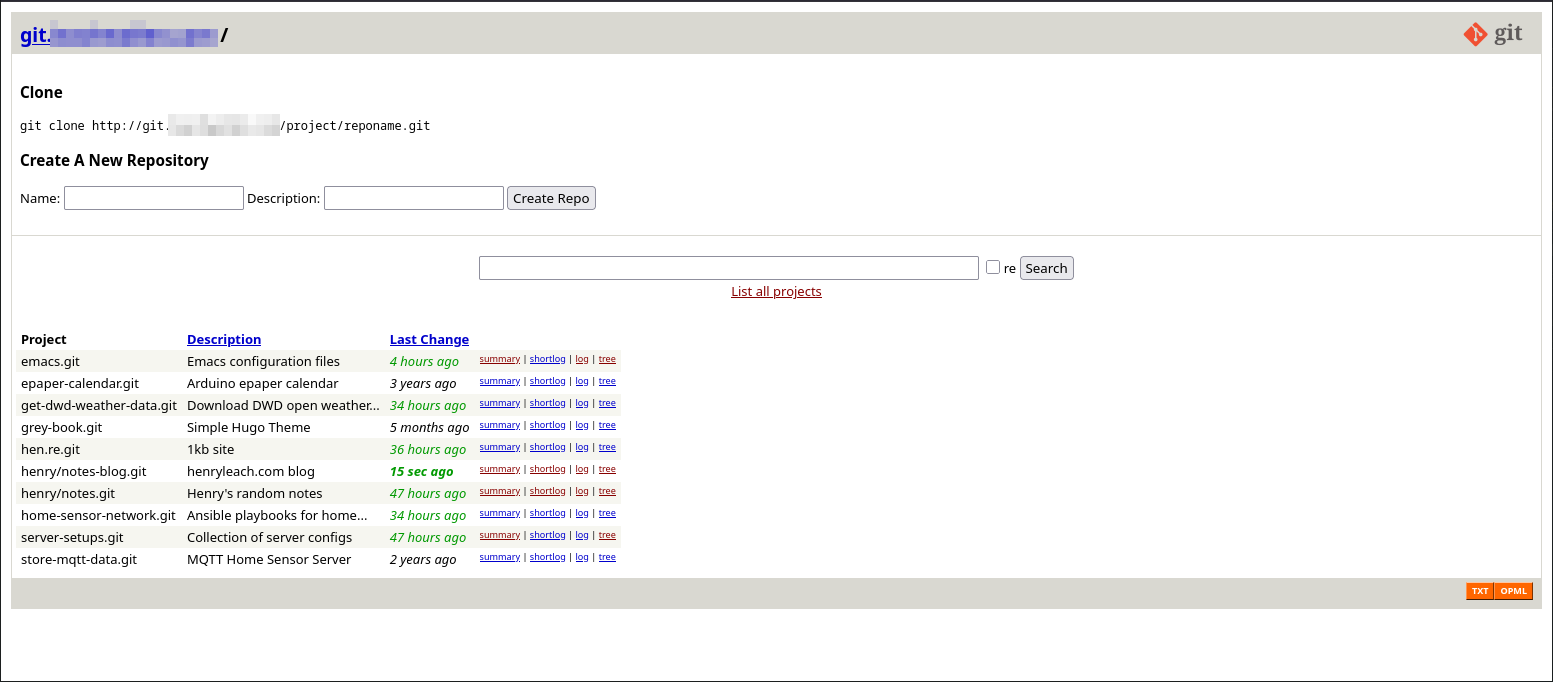
our $home_text="static/indextext.html";With that in place, you should be able to reload the home page, and see the form appearing at the top. With the tweaks and changes, my home git server now looks like this:
With that, I hope I've satisfactorily scratched all my itches, and this is finished. As with most of these little projects, I think it'll be a quick job - and in some ways it is3, but then I can't resist the need to understand something just a little more, and then dig into a topic that doesn't really get to the result any faster, even if it deepens my understanding. It's then very hard to let that go and actually finish. In this case I feel I've abandoned some of the validation and checking of the inputs, as well as perhaps making the CSS a little better in places…but I need to say I'm done on this topic.
Complete NGINX Config
Here is the complete nginx.conf file, combining all the elements from parts 1 and 2.
# NGINX config to host a smart HTTP Git server
user www;
worker_processes 2;

events {
    worker_connections  128;
}

http {
     server_tokens	off;
     include       mime.types;
     charset	   utf-8;
     sendfile        on;
     keepalive_timeout  65;

    server {
	listen       80;
	server_name git.example.com;

	# This is where the git repositories live on the server
	root /srv/git;

	# # Optional browsing, sometimes useful
	# # to enable if you're not sure nginx is working
	# # as expected. No authentication required to see everything.
	# location ~ /git/.* {
	# root /srv;
	# autoindex on;
	# autoindex_exact_size off;
	# autoindex_localtime on;
	# }

	## next three locations are optional if you want Gitweb
	location = / {
	    return 301 /gitweb.cgi;
	}

	location ~ /static/.* {
	    # Needed for static gitweb assessts
	    root /srv/gitweb;
	}

	location ~* ^/gitweb.cgi.* {

	   set $auth_set off;
	   if ($args ~* ^p=([a-z]*)\/.*) {
	      set $auth_set Restricted;
	      set $project $1;
	    }

	    auth_basic $auth_set;
	    auth_basic_user_file /srv/git/$project/.htpasswd;

	    include fastcgi_params;
	    fastcgi_param SCRIPT_FILENAME /srv/gitweb/gitweb.cgi;
	    fastcgi_pass unix:/var/run/fcgiwrap/fcgiwrap.sock;
	    }

	location ~* /create-repo.cgi {

	    auth_basic "Restricted";
	    auth_basic_user_file /srv/.htpasswd;

	    fastcgi_intercept_errors on;
	    include fastcgi_params;
	    fastcgi_param SCRIPT_FILENAME /srv/gitweb/create-repo.cgi;
	    fastcgi_param REPO_NAME $arg_reponame;
	    fastcgi_param DESCRIPTION $arg_desc;
	    fastcgi_pass unix:/var/run/fcgiwrap/fcgiwrap.sock;
	    }

	location ~* ^(/[\w-]+)/([\w-]+\.git.*) {
	# Private repos, push & pull only with authentication
	# based on the user's sub-directory
	    auth_basic "Restricted";
	    auth_basic_user_file /srv/git/$1/.htpasswd;

	    # Allows editing
	    fastcgi_param GIT_HTTP_RECEIVE_PACK "";
	    fastcgi_param PATH_INFO           $1/$2;
	    include 	  git-cgi-params;
	}


	location ~* ^(/.*git-receive-pack)$ {
	    # pushing requires authorisation
	    auth_basic "Restricted";
	    auth_basic_user_file /srv/.htpasswd;

	    # Allows editing
	    fastcgi_param GIT_HTTP_RECEIVE_PACK "";
	    fastcgi_param PATH_INFO           $1;
	    include 	  git-cgi-params;
	    }

	location ~* ^(/.*) {
	    # Anonymous Clone
	    fastcgi_param PATH_INFO           $1;
	    include 	  git-cgi-params;
	    }

    }
}I did try and add form validation to my HTML form, but when I started by adding the required attribute, loading the page in Firefox or Chrome would result in errors I wasn't able to understand, complaining about XML Parsing Error: not well-formed in Firefox, and Chrome rendering only the start of the page, and then giving up. ↩